PowerPoint turns 39 this year. It shows.
You still start with a blank slide. You still hunt for templates that almost-but-not-quite fit. You still spend hours aligning text boxes, Googling statistics, and wondering why your slides look like they were made in 2010.
Meanwhile, AI can write essays, generate images, and build entire websites from a description. There are now real alternative presentation tools to PowerPoint—and they’re not just “PowerPoint with AI features bolted on.”
Why are you still making slide decks the hard way?
TL;DR: PowerPoint forces you to be designer, researcher, and writer all at once. The best AI alternatives to PowerPoint—Gamma, Canva, and Mocha—automate the tedious parts. Mocha goes furthest with 10 features PowerPoint will never have: Q&A preparation, style transfer, lead capture forms, custom domains, AI brainstorming in Discuss mode, and audience adaptation.
The PowerPoint Problem
Let’s be honest about what PowerPoint actually requires:
- Design skills you probably don’t have (or the time to develop)
- Hours of manual formatting that could go toward actual work
- Constant Googling for statistics that are already outdated
- Starting from scratch every single time
The numbers back this up. 50% of presenters spend 8+ hours on a single presentation. More than half of professionals create presentations weekly. That’s time you could spend landing clients, closing deals, or actually running your business.
You’re not a presentation designer. You shouldn’t have to be. PowerPoint is a tool from 1987 solving 1987 problems. You need something built for 2026.
The Best AI Alternatives to PowerPoint
Three tools stand out as serious alternatives: Gamma, Canva, and Mocha. Each takes a different approach—but one goes much further than the others.
| Feature | PowerPoint | Gamma | Canva | Mocha |
|---|---|---|---|---|
| AI slide generation | Copilot (basic) | Yes | Magic Design | Yes |
| Live web research + citations | No | No | No | Yes (Max mode) |
| Style transfer from any reference | No | Limited | Templates only | Yes |
| AI brainstorming / strategy | No | No | No | Yes (Discuss mode) |
| Audience adaptation | No | No | No | Yes |
| Q&A preparation | No | No | No | Yes |
| Access control (password or Google Auth) | No | No | No | Yes |
| Viewer analytics | No | No | No | Yes |
| Custom domain / white-label | No | No | No | Yes |
| Free tier | No | Yes | Yes | Yes |
Gamma is fast and produces clean-looking slides from bullet points. But that’s about it—no research, no strategy, no customization beyond their templates.
Canva has a massive template library, which is great if you want to look like everyone else using Canva. The AI is an afterthought, not the core experience.
Mocha is in a different category. Live web research with citations. Strategic brainstorming before you build. Google Auth protection, viewer analytics, custom domains. It’s not a slide tool with AI bolted on—it’s an AI that builds you a complete presentation app.
Let’s look at what makes Mocha the clear winner.
Stop Making Slides. Let AI Build You an App.
Here’s what makes Mocha fundamentally different: you’re not making a presentation file—you’re creating a presentation that lives on the web. And AI builds the whole thing for you. (This is the same approach we covered in rapid prototyping from PRD to live app—describe what you want, get something real.)
Gamma and Canva generate slide decks you download. Mocha generates a complete, hosted presentation with features baked in—Google Auth, viewer analytics, your own branding. You describe what you want. It builds.
The best approach is two prompts: structure first, content second.
Step 1: Build the Structure
Start by defining the features and design. No content yet—just the shell of your deck.
Features:
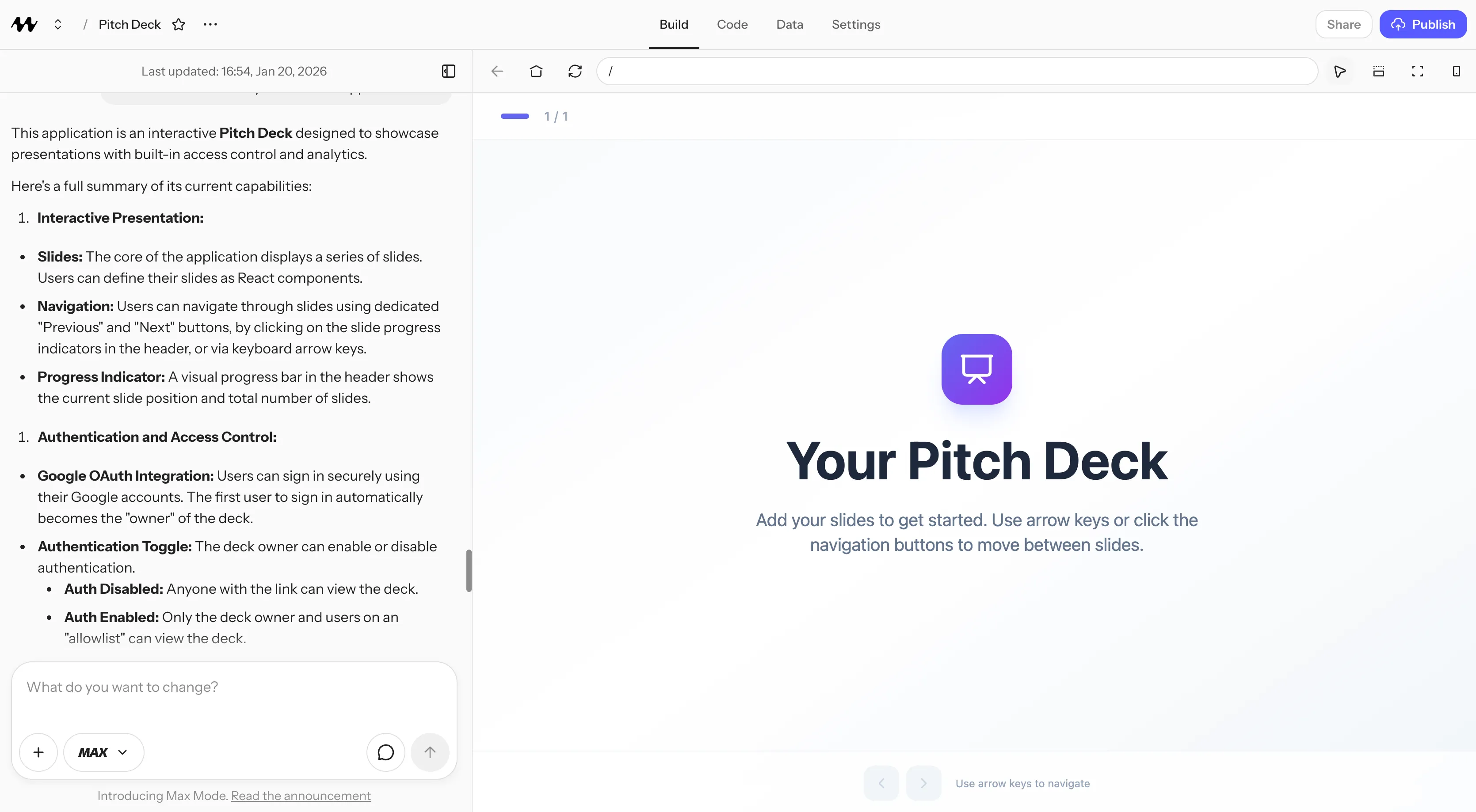
- Google Auth with allowlist: add a settings modal where I can manage which email addresses can view the deck. By default, allow all addresses so I can sign in first. The first person to sign in becomes the owner/admin. After that, viewers must be on the allowlist to see the deck after authenticating. Include an option to disable Google Auth for public viewing—but even when disabled, the owner can still sign in to access settings.
- Track in the database who opened the deck and how long they spent on each slide
- Keyboard navigation (arrow keys to advance)
- Install a charting library for elegant, animated data visualizations
Design: These are pitch slides, not a marketing website. Keep it clean, professional, and presentation-focused.
- Standard 16:9 aspect ratio (1920×1080) on every slide—the universal default for PowerPoint, Google Slides, and Keynote
- All content must be visible and never cropped, regardless of screen size
- Text, containers, and visual elements must scale proportionally—nothing hidden or cut off at any resolution
- Don't overcrowd slides. Keep content easy to read at a glance. One main idea per slide.
- Large, readable typography with comfortable spacing
- This is a pitch deck, not a landing page. Avoid marketing website aesthetics—no hero sections, no scrolling, no web-style layouts
Important: All slide content must be hardcoded in the source files—no database dependencies for content. What I build in development should be exactly what publishes to production. (Viewer tracking can use the database.)
Do not create any slides yet. Just build the deck structure and features. I'll add the slides and content in the next prompt.
Step 2: Add the Content
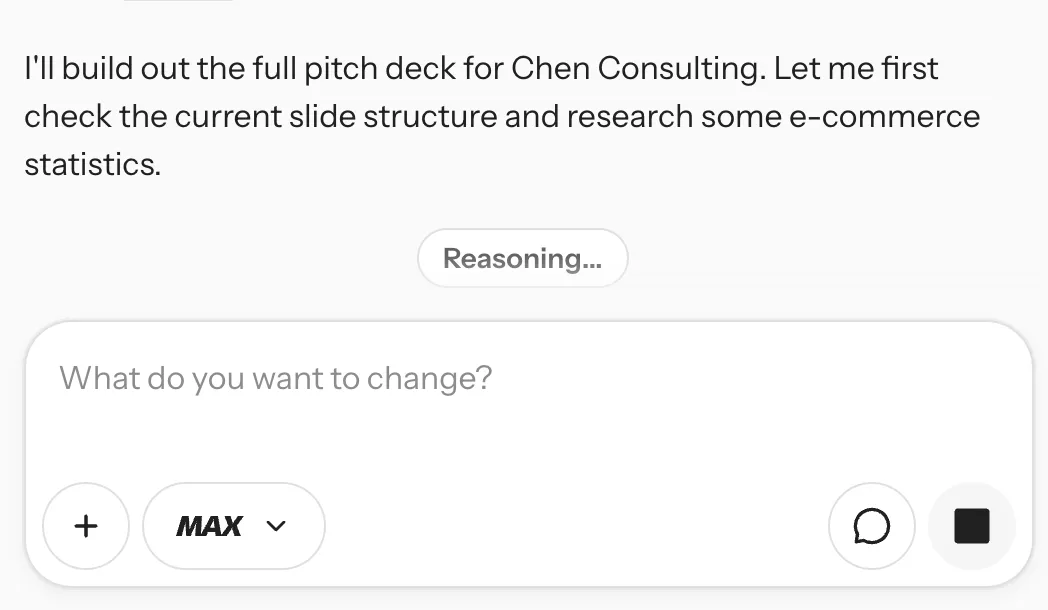
Once your structure is ready, add your content. Attach a text file with your business details, then tell Mocha what slides you need and what to research.
Pro tip: Enable Max mode before this prompt. It lets Mocha search the web for current statistics and cite real sources.
About me:
I'm Sarah Chen, founder of Chen Consulting. I help small e-commerce brands improve their conversion rates through better product pages, checkout flows, and email sequences. My tagline is "Turn browsers into buyers."
Background: 5 years at Shopify as a UX researcher, then 3 years consulting independently. I've worked with 40+ e-commerce stores.
My results (use these for case studies):
- Organic Bath Co: Reduced cart abandonment from 76% to 58%, added $127K annual revenue
- PetBox Supply: Increased checkout completion by 34% through one-click upsells
- ModernHome Decor: Email sequence optimization drove 22% repeat purchase rate (industry avg is 8%)
Pricing tiers:
- Audit Only: $1,500 — Full conversion audit with recommendations report
- Audit + Strategy: $3,500 — Audit plus 90-day implementation roadmap and two strategy calls
- Full Implementation: $8,000 — Everything above plus hands-on implementation support for 3 months
Who I work with: Shopify and WooCommerce stores doing $10K-$100K/month who want to grow revenue without increasing ad spend.
Required slides:
- Title slide with name and tagline
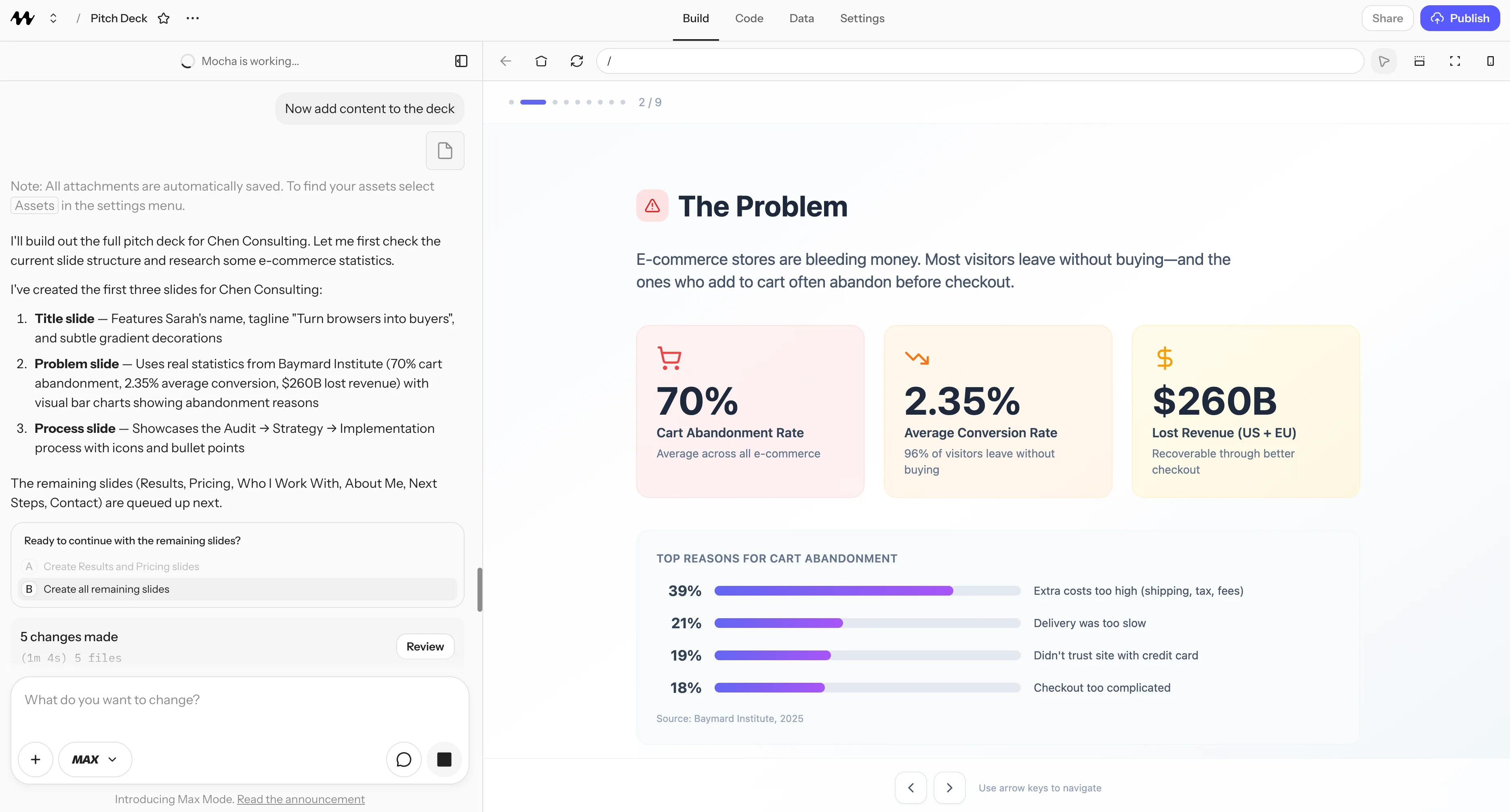
- The problem (search the web for current stats on cart abandonment rates, average e-commerce conversion rates, cost of customer acquisition trends)
- What I do and my 3-step process: Audit → Strategy → Implementation
- Results — turn the case studies above into a visual slide with metrics
- Pricing — make the three tiers easy to compare
- Who I work with and ideal client profile
- About me with background
- Next steps: how to book a free 30-minute consultation
- Contact slide
Research: Search the web for current e-commerce conversion benchmarks, cart abandonment statistics, and ROI of conversion optimization. Use real data to make the "problem" slide compelling.
Turn this raw information into highly visual slides—charts for the data, clean layouts for pricing, and strong visual hierarchy throughout.
Remember: All content must be hardcoded in the source files—no database storage for slide content. What I see in development is exactly what gets published.
Step 3: Restyle for Impact
Now make it look like it was designed by a professional. Research shows investors spend just 3 minutes and 44 seconds reviewing an entire pitch deck—about 10 seconds per slide. Every design choice needs to earn its place.
Color & Visual Identity:
- Primary: deep navy (#1a365d) for authority and trust
- Accent: warm coral (#e85d4c) for emphasis and energy—use sparingly on key metrics and CTAs only
- Backgrounds: clean white or very light warm gray (#f9f8f6)
- This palette says "credible expert" not "flashy startup"
Typography Hierarchy:
- Slide titles: 48-60pt bold sans-serif, navy
- Key metrics/numbers: 72pt+ bold, coral accent
- Body text: 24-28pt, comfortable line height, dark gray (#374151)
- Never more than 3 font sizes per slide
Layout & White Space:
- Follow the 2/3 rule: approximately 2/3 of each slide should be white space
- Content anchored to a consistent grid—nothing floating randomly
- Left-align text blocks for readability (not centered paragraphs)
- Generous margins: content should never approach slide edges
Data Visualization:
- Charts should be simple and tell one story at a glance
- Use the coral accent for the data point you want them to remember
- Labels directly on charts, not in legends
- Animate numbers counting up on reveal for impact
Professional Polish:
- Consistent element spacing across all slides (use 32px or 48px increments)
- Subtle slide transitions (fade or none—no flashy effects)
- Icons from a single consistent set, same stroke weight
- Case study metrics in large, bold callout boxes
One Idea Per Slide:
- If you're explaining two things, make two slides
- The main point should be obvious within 3 seconds
- Supporting details minimal—this is a pitch, not a document
Make this look like a $5,000 custom-designed pitch deck, not a template.

Your deck now looks like it cost five figures to design. That credibility matters—93% of pitch decks fail partly because unprofessional design undermines trust before you say a word.
In a few minutes, you have a live pitch deck—not a file to email. It’s hosted, protected with Google Auth, tracks exactly who viewed it and for how long, and you can refine it with follow-up prompts.
What this unlocks:
| Traditional Tools | Mocha |
|---|---|
| Export as PDF, email as attachment | Live URL, always up to date |
| No idea if anyone opened it | See who viewed, when, and which slides |
| Anyone with the file can share it | Google Auth—you control exactly who sees it |
| Static content, frozen in time | Update anytime, viewers see latest |
| PowerPoint branding, their templates | Your design, your domain |
Here’s the finished deck—built entirely with prompts. View the live demo →
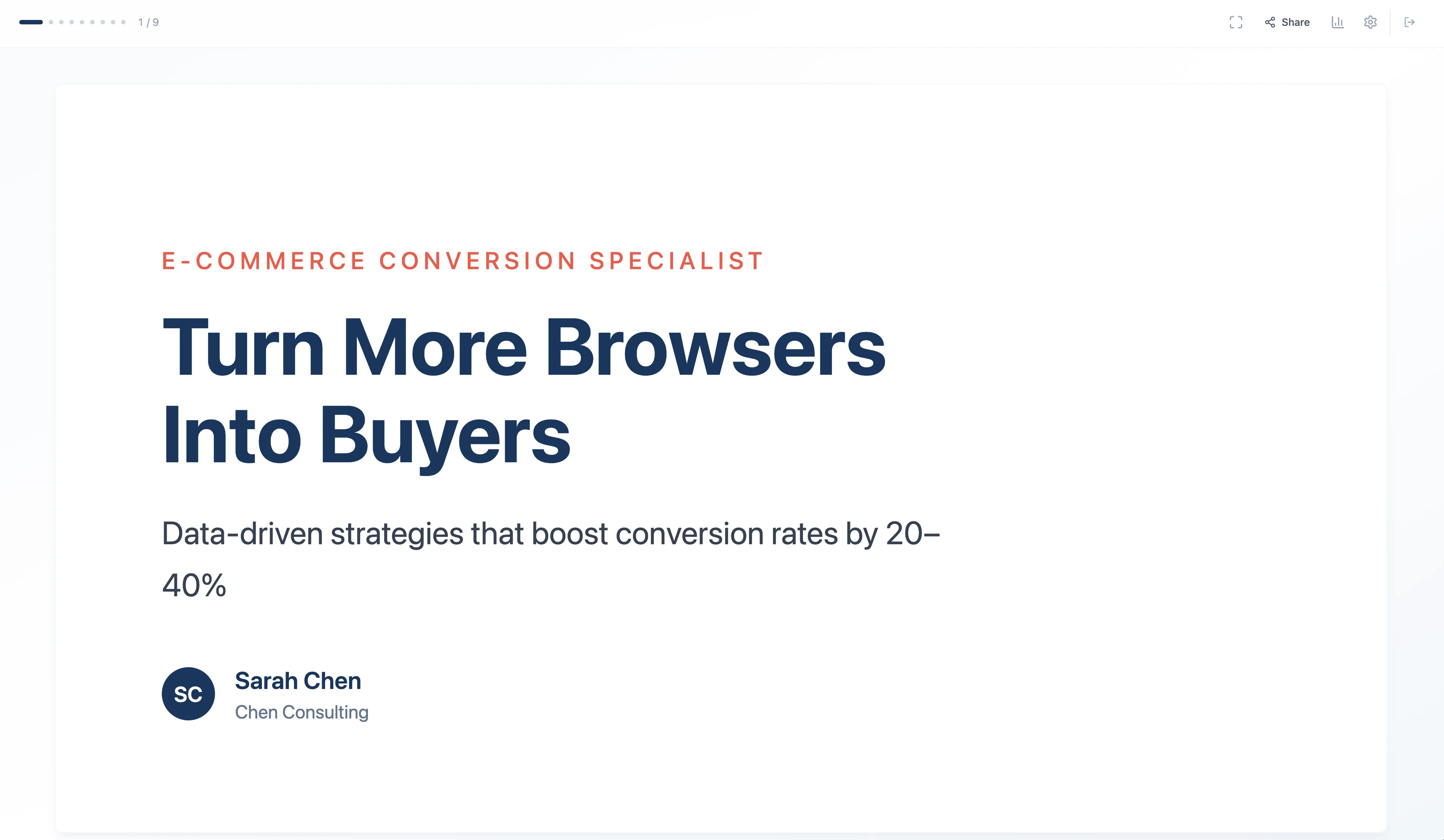
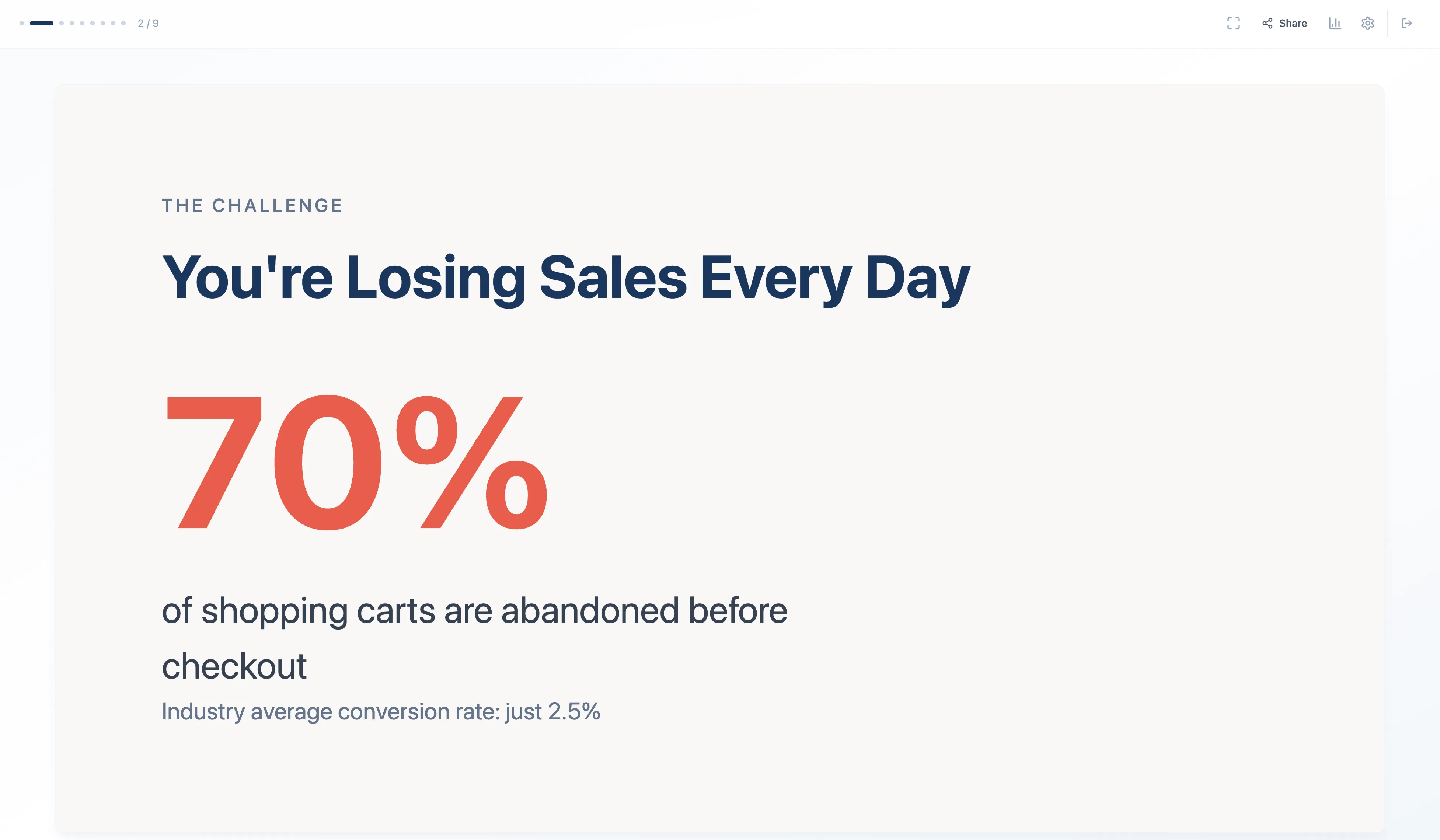
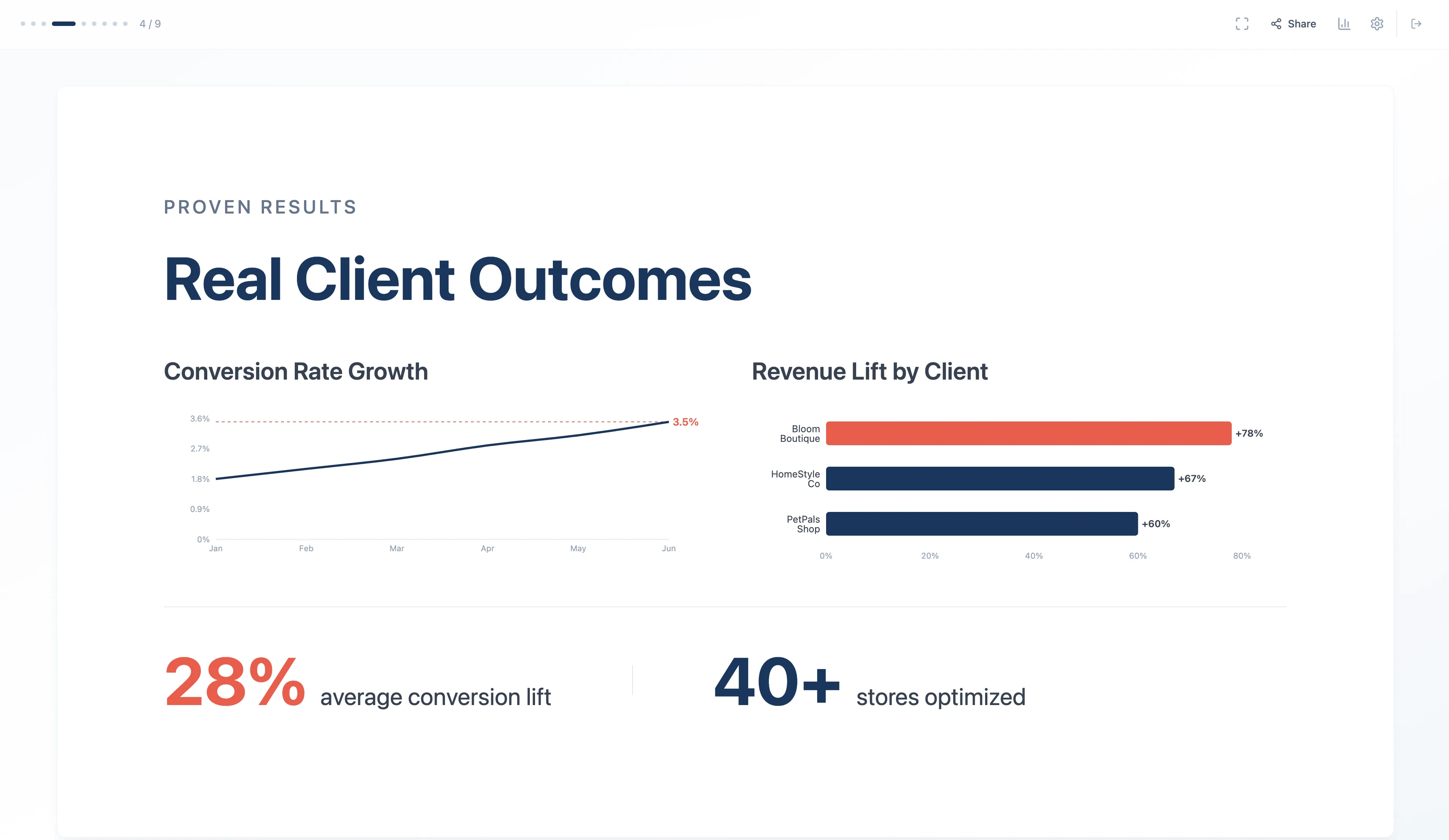
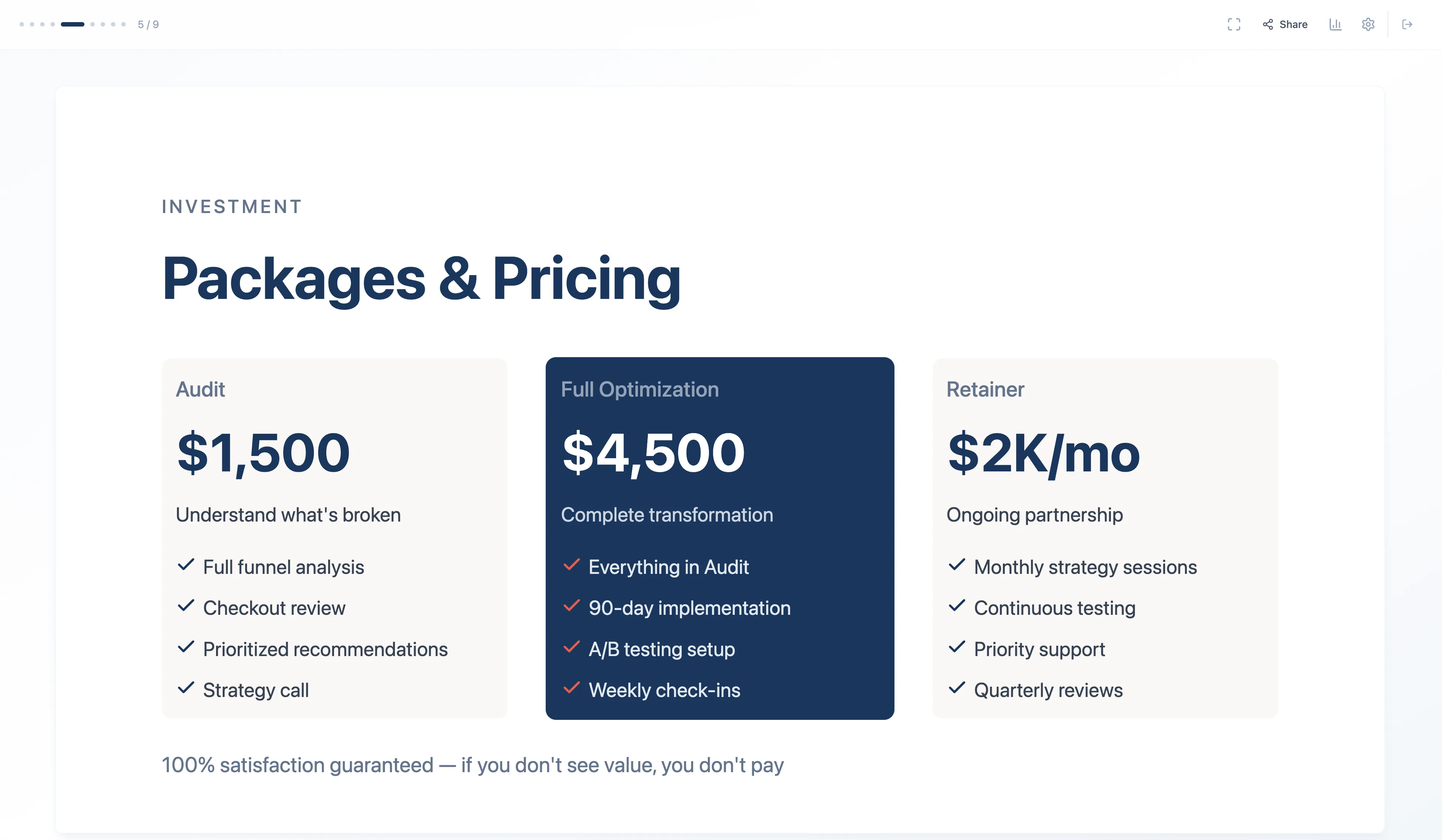
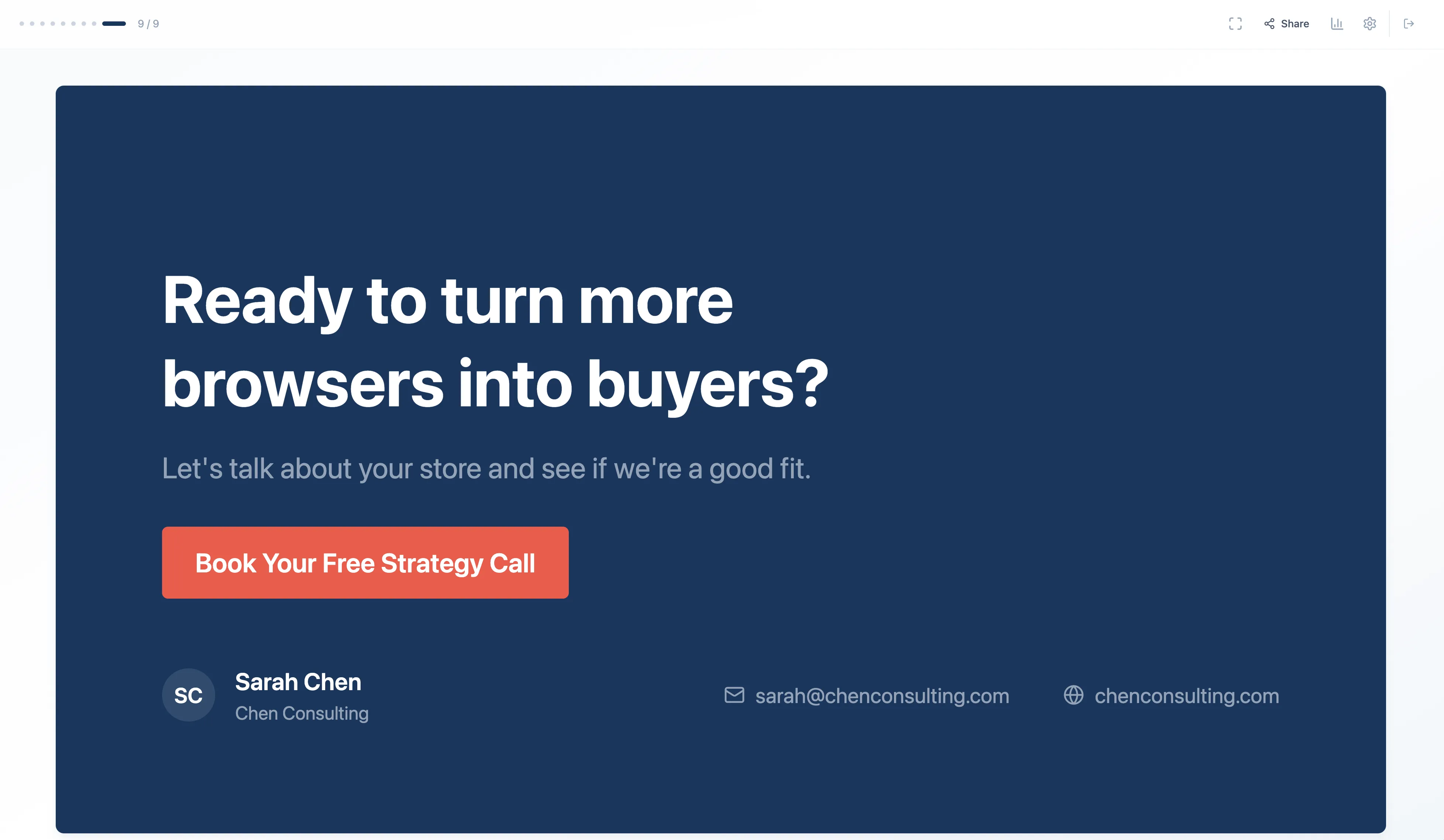
This is the foundation. Now let’s look at the 10 features you can add that PowerPoint will never match.
10 Features PowerPoint Will Never Have
1. Q&A Preparation
PowerPoint: Present your deck. Get blindsided by a tough question. Wish you’d prepared for that.
Mocha: Anticipate what your audience will ask—before you’re standing in front of them.
- The 5 toughest questions a potential client might ask
- Weak points in my argument that could get challenged
- Suggested responses for each question
Also create a "backup slides" section with deeper data for anticipated follow-ups.
Consultants get asked about ROI. Founders get asked about competition. Mocha helps you prep for the questions that matter—so you’re never caught flat-footed.
2. Story Arc Structuring
PowerPoint: Information dump. Slide after slide of bullets. Audience checks out by slide 5.
Mocha: Understands narrative structure. Suggests frameworks that keep audiences engaged:
- Problem → Solution → Impact for sales
- Situation → Complication → Resolution for strategy
- Hook → Build → Payoff for keynotes
1. Start with the customer pain point
2. Build tension around why existing solutions fail
3. Reveal our solution
4. End with transformation and results
Keep the content, reorder for maximum impact.
“Make this more compelling” actually works. Not just rearranging slides—restructuring the narrative.
3. Style Transfer from Any Reference
PowerPoint: Spend 2 hours trying to make your slides look like Apple’s keynote. Fail.
Mocha: Describe the style you want, or attach screenshots of decks you admire. Mocha analyzes the visual language and applies it.
Here are five styles you can apply with a single prompt:
- Jet black background with pure white text
- One key message per slide, massive typography
- Dramatic reveals with lots of negative space
- Product shots floating on black, edge-to-edge imagery
- No bullets, no clutter—just impact
- Clean white background with subtle gray accents
- Smooth gradients in blues and purples
- Modern sans-serif typography with generous line height
- Code snippets styled with syntax highlighting
- Floating UI elements with soft shadows
- Bold, oversized quotes that fill the screen
- Warm, confident colors (deep reds, oranges)
- Speaker-centric layouts—minimal text, maximum presence
- Cinematic imagery, full-bleed photos
- Typography that demands attention
- Elegant black and gold color palette
- Refined serif typography (think Vogue, Chanel)
- Generous whitespace, nothing cramped
- High-end photography with editorial styling
- Subtle animations, sophisticated transitions
- Neon pink and cyan on dark purple backgrounds
- Chrome gradients and glowing text effects
- Grid lines and geometric patterns
- Synthwave-inspired typography
- Bold, nostalgic, impossible to ignore
Attach screenshots of any presentation you admire, and Mocha will analyze the visual language and apply it to your deck.
4. Lead Capture Forms
PowerPoint: Email a PDF. Hope they reply. Have no idea if they even opened it.
Mocha: Turn your presentation into a lead generation tool.
- Fields: name, email, company, biggest challenge
- After submission: show a thank-you message and my Calendly link
- Store submissions in the database so I can follow up
- Send me an email notification when someone submits
Your pitch deck doesn’t just inform—it converts. When a prospect finishes viewing, they can book a call right there. No “let me send you my calendar link” follow-up emails.
5. Iterative Refinement with Follow-up Prompts
PowerPoint: Manually tweak every element. Undo. Redo. Spend 20 minutes on one slide.
Mocha: Don’t like something? Just say what’s wrong. Mocha fixes it.
Your deck is never “done”—it’s a conversation. Keep refining with plain English until it’s exactly right.
6. Discuss Mode for Strategic Refinement
PowerPoint: Create in isolation. Miss blind spots. Find out during the actual presentation.
Mocha (Discuss mode): Brainstorm your angle before building. Stress-test arguments. Prep for tough questions.
I help small online stores improve their conversion rates through better UX and checkout optimization.
What's the most compelling angle? What story structure works best? What objections should I anticipate from potential clients?
This is what makes Mocha different from Gamma or Canva. It’s not just “AI makes slides.” It’s “AI helps you think.” (For more on getting results with AI, see expert tips for AI web builders.)
When to use Discuss mode:
- Before building: “What’s the best angle for this deck?”
- During review: “What’s weak about slide 5?”
- For Q&A prep: “What tough questions will my audience ask?“
7. Custom Domains
PowerPoint: Share a file. Or a Google Drive link. Or a Canva link with their branding all over it.
Mocha: Publish to your own domain. Your brand, your URL, your credibility.
Make sure:
- The page title and meta description are SEO-friendly
- Social sharing cards show my branding, not Mocha's
- The favicon matches my brand
When you send pitch.chenconverting.com instead of some-app.com/shared/abc123, you look like a professional who has their act together. Small detail, big difference.
8. Presenter Notes & Talking Points
PowerPoint: Great slides ≠ great presentation. You still have to figure out what to say.
Mocha: Auto-generate speaker notes that actually help you present—not just restate what’s on the slide.
- Key talking points (not just reading the slide)
- Transition cues to the next slide ("Building on that...")
- Time estimates per section (total: 15 minutes)
- Notes on where to pause for emphasis or questions
The difference between a good presentation and a great one is delivery. Mocha helps you nail it—with notes that guide you through the narrative, not just remind you what’s on screen.
9. Audience Adaptation
PowerPoint: Manually create 3 versions of the same deck for different audiences. Maintain them separately forever.
Mocha: Clone your deck to a new URL. All the features you built—Google Auth, viewer analytics, responsive design—come with it. No rebuilding. Just edit the content for your new audience and republish.
- Focus on how we can collaborate and share leads
- Remove pricing details, add partnership benefits
- Compress to a 5-minute overview
One click to clone, one prompt to adapt, one click to publish. Now you have two decks—same features, different audiences. “I have 30 slides but only 10 minutes” — Mocha compresses ruthlessly.
10. Embed External Content
PowerPoint: “Check out our demo video” with a static screenshot and a URL they have to copy-paste.
Mocha: Embed live content directly in your slides—videos, calendars, booking widgets, even interactive demos.
- Embed my Calendly widget so viewers can book a call without leaving the deck
- Add a Loom video walkthrough of my process (here's the embed code: ...)
- Include a live countdown timer to my upcoming webinar
Your deck becomes interactive. Prospects don’t just read about booking a call—they book it right there. No friction, no extra steps, no “I’ll get back to you.”
Gamma vs Canva vs Mocha: The Real Comparison
All three are better than PowerPoint. Each has real strengths—but they’re built for different jobs.
Gamma
Best for: Fast first drafts and shareable web-decks
Gamma is genuinely impressive for speed. It uses 20+ AI models working together—some for text, others for images, layout, and brand consistency. You can get a full presentation outline in under a minute.
- One-click redesign — transform your style while keeping content intact
- AI chat editor — refine content through conversation
- Real-time collaboration — multiple people editing simultaneously
- Social media formats — export to Instagram, LinkedIn carousels, Twitter threads
- Flexible card system — breaks complex ideas into digestible pieces
Pricing: Free tier with 400 credits (40 per deck), paid plans from $10/month
The limitations: Generated designs can look generic without careful prompting. Data often needs fact-checking—the AI makes up numbers. Limited customization (no precise font sizes). PPTX exports have formatting issues. And once your free credits run out, they don’t refresh.
Bottom line: Excellent for internal decks and first drafts. For client-facing work, you’ll spend time fixing what the AI got wrong.
Canva
Best for: Non-designers who need polished visuals fast
Canva’s Magic Design is legitimately good. Type a prompt and it generates multiple fully-designed options with cohesive color schemes, relevant imagery, and layouts that actually make sense. If you’ve set up a Brand Kit, it pulls your fonts, colors, and logos automatically.
- Massive template library — thousands of starting points
- Brand Kit integration — consistent branding across all designs
- Context-aware suggestions — AI understands your topic and suggests appropriate visuals
- Beyond presentations — social graphics, videos, documents in one tool
- Easy learning curve — intuitive interface, no design skills needed
Pricing: Free tier (10 Magic Design uses), Pro from $13/month
The limitations: Slides tend to be text-heavy with shallow, generic content. Prompt length is capped at ~100 characters, limiting specificity. PPT exports often break layouts. And free users can’t export to PowerPoint at all—only shareable links with Canva branding.
Bottom line: Great for social media and quick visual content. For serious pitch decks, the AI generates filler, not substance.
Mocha
Best for: Founders, consultants, and small business owners who need results—not just slides
Mocha is a different category. While Gamma and Canva generate slide files, Mocha builds you a complete presentation app—hosted on the web, with features baked in that the others will never have.
- Live web research with citations — current data from real sources, not AI hallucinations
- Strategic brainstorming (Discuss mode) — nail your messaging before building
- Style transfer — match any reference, not just their templates
- Google Auth protection — control exactly who sees your deck
- Viewer analytics — know who viewed it, when, and how long they spent on each slide
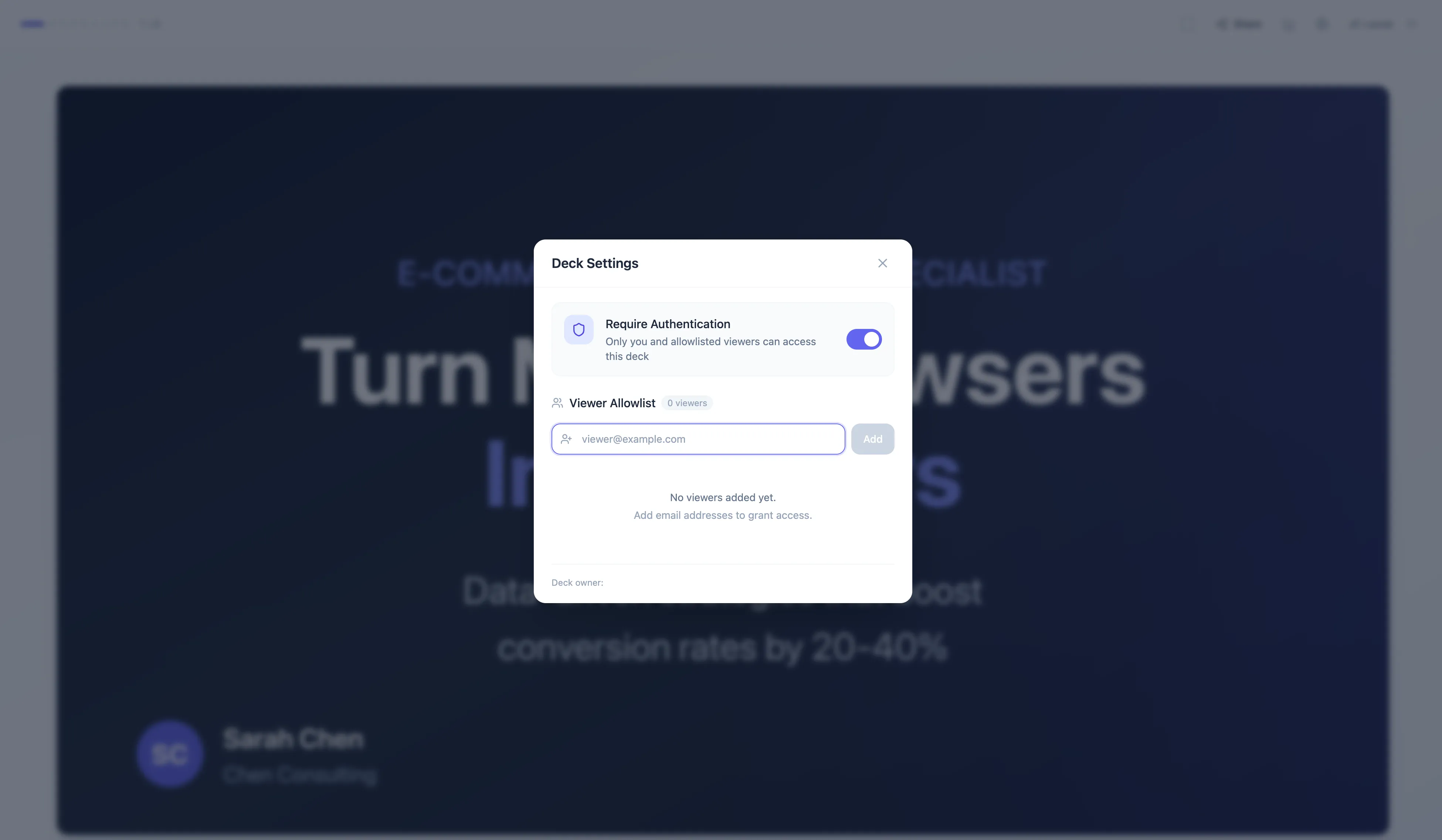
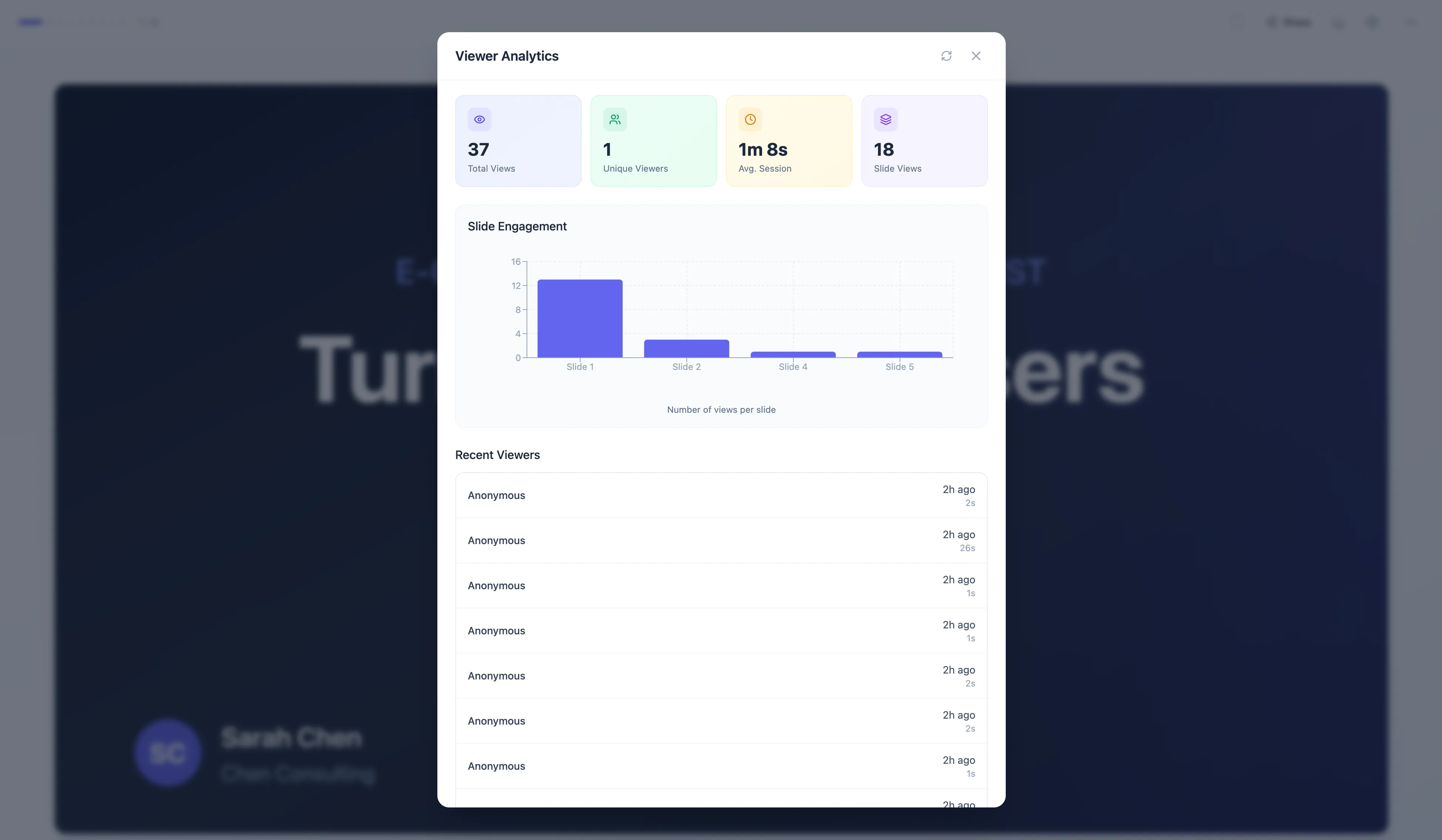
- Lead capture forms — turn presentations into conversion tools
- Custom domains — your brand, not theirs
- Animated charts — real charting libraries, not clipart
- Clone and adapt — duplicate your deck, modify for new audiences, publish to new URLs
- No coding required — describe what you want, AI builds it
Pricing: Free tier, Bronze/Silver/Gold plans
The reality: Gamma and Canva help you make slides. Mocha helps you close deals. When the outcome matters—landing a client, getting funded, winning a partnership—you need more than a slide generator.
The bottom line: Gamma and Canva are presentation tools. Mocha is an AI that builds you a presentation system you actually own.
When to Use Each Tool
| Situation | Best Tool | Why |
|---|---|---|
| Quick internal update (low stakes) | Gamma | Fast, good enough for Slack |
| Pitching investors or partners | Mocha | Research + citations + viewer tracking |
| Sales deck for prospects | Mocha | Lead capture, analytics, access control |
| Client proposal | Mocha | Professional, trackable, your branding |
| Workshop or webinar | Mocha | Story structuring + Q&A prep |
| Bank loan or grant application | Mocha | Current data, polished design, confidential |
| Services overview for your business | Mocha | Style transfer matches your brand |
| Internal team update | Gamma | Fast, collaborative, good enough for Slack |
| Social media carousel | Canva | Built-in formats for Instagram/LinkedIn |
Honest take: Gamma is great for speed and internal collaboration. Canva is great for visual content and brand consistency. But when the outcome matters—landing a client, closing a deal, getting funded—you need more than a slide generator. That’s where Mocha wins.
How to Make Google Slides Look Good (The Mocha Way)
Instead of fighting with Google Slides formatting, try this:
- Describe what you want — paste your outline or key points into Mocha
- Let AI generate the structure — get a complete deck with proper flow
- Apply style transfer — reference Apple, Stripe, or any aesthetic you admire
- Add research — current statistics with citations
- Use Discuss mode to strengthen weak arguments before presenting
Start with AI, then refine. It’s faster than fixing a bad deck. (Need more prompting help? Check out mastering prompt engineering.)
Frequently Asked Questions
What is the best alternative to PowerPoint?
For AI-powered presentations: Gamma for speed, Canva for design, Mocha for depth. Mocha is the only one with live web research, strategic AI assistance, and the ability to add custom features like password protection and analytics.
Is Gamma better than Canva for presentations?
Different strengths. Gamma is faster for text-to-slides. Canva has better templates and brand tools. Neither has Mocha’s research capabilities or app-building features.
How do I make my slides look more professional?
Use style transfer. Find a presentation you admire (Apple keynotes, top startup pitch decks) and ask the AI to match that aesthetic. Mocha can analyze any reference and apply the visual language.
What is Discuss mode in Mocha?
A conversational AI interface for strategic thinking. Instead of generating slides, it helps you brainstorm angles, stress-test arguments, and prep for Q&A. Use it before building to ensure your deck has a strong foundation.
Can I control who sees my presentation?
With traditional tools, no—anyone with the file can share it. With Mocha, you can add Google Auth so only specific people can access your deck. You can also track exactly who viewed it and how long they spent on each slide. It’s a full-stack app builder, so you can add any feature you need.
Are AI presentation tools free?
All three (Gamma, Canva, Mocha) have free tiers. Mocha’s free tier includes basic AI features, and Max mode (with web research) is now available across all tiers.
Stop Fighting PowerPoint
You have better things to do than align text boxes. You have clients to land, deals to close, and a business to run.
PowerPoint is a drawing tool that happens to make slides. Gamma, Canva, and Mocha are AI systems designed to build slide decks for you.
Mocha goes furthest: Research with live citations. Brainstorm before building. Adapt for any audience. Add features like password protection and analytics that other tools will never have—all without writing code or hiring a developer.
The best presentation is the one that’s done—and actually helps you get results.